
4 Easy Ways to Optimize Your Squarespace Website
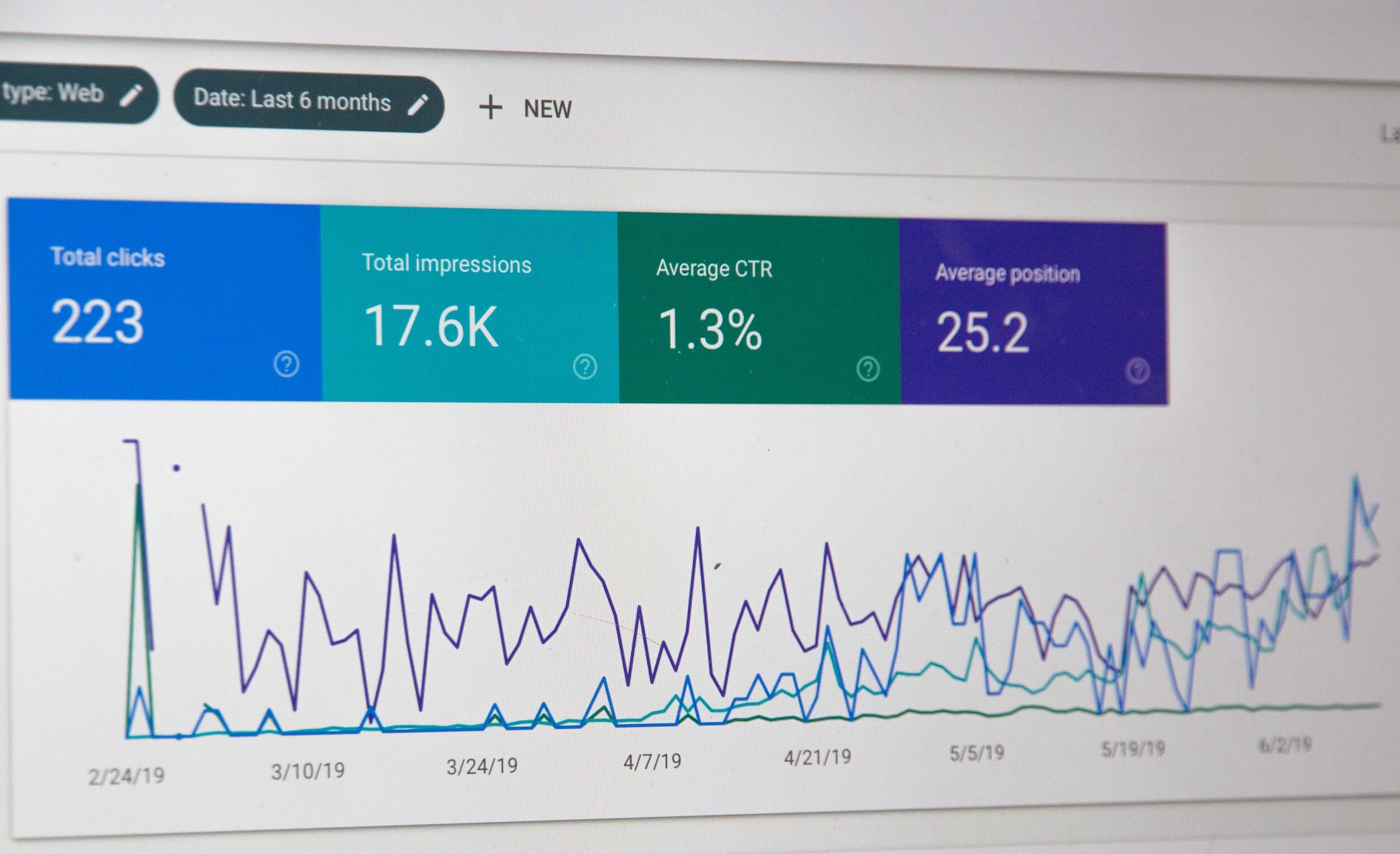
Whether you hired a designer or DIY’d it, managing a site after launch can be stressful. Why is my site traffic so low? How long will it take to get visitors? Why is Google showing so many errors? Most people put so much focus on SEO and third-party tools like Google Search Console and SemRush that they aren’t really focused on the design and functionality of the site. Once you get that right, everything else falls in place. Also, when using CMS platforms like Squarespace, keep in mind some Search Console warnings on Squarespace sites are platform-related and may not require action, but Search Console remains one of the most valuable tools for monitoring site performance. GSC and its page insights is built to function for platforms like Wordpress where sites are designed using custom coded solutions (JavaScript, HTML, etc). So when indexing your Squarespace site, Google will pushback errors that don’t apply to you. For example, you’ll see errors about your homepage and root domain being non-canonical or robot.txt errors. Many of these can be ignored since all Squarespace sites use the same robots.txt file and that file cannot be edited by you, the user. Click here to learn more about understanding Google Console errors.
Now that the complicated mumbo-jumbo is out of the way. How can you optimize your site for SEO without using confusing third-party tools?
#1 - ADD IMAGE ALT TEXT…EVERYWHERE!
Using image alt text across your site and products not only helps to increase your SEO ranking, it makes your content more accessible. Squarespace offers various areas for alt text to be added as image descriptions. In some areas such as 7.0 gallery blocks and pages, your image description doubles as alt-text and therefore cannot be hidden from the page content. Keep that in mind when writing out alt-text. Search engines use your alt text to identify the image content, increasing your SEO ranking.
Check out Squarespace’s documentation on how to include alt text on your images depending on where/how images are added.
Link- Adding alt text to images
If you find yourself struggling to add image alt-text, feel free to reach out to us for more detailed assistance.
#2- OPTIMIZE YOUR SITE FOR MOBILE!
The great thing about using Squarespace is that their system automatically makes sites look great on mobile devices. Now there is some controversy regarding 7.0 being better for mobile than the new 7.1 fluid engine. However, having more control over the layout of your content on mobile is the best thing to happen to Squarespace users. We can now change the layout of blocks and content (for most pages) without it having an impact on the desktop site. For 7.0 sites and sites using the classic editor, you have to apply code to achieve this. You all know how we feel about using too much code and CSS (Bleh!).
If you are using 7.0, we recommend keeping mobile styles enabled. This allows Squarespace’s responsive design feature to function properly. To ensure mobile styles are enabled:
→ Open the Design panel and click Template settings.
→Ensure Disable mobile styles is unchecked.
You’ll only see this setting if your template supports disabling mobile styles.
Like many sites, you may have a blog, in that case enable AMP for your blogs to be more mobile friendly. AMP or Accelerate Mobile Pages creates less dense versions of web pages which helps them load faster on mobile devices. Check out more on Squarespace’s AMP feature here.
Minimize the usage of spacer blocks whenever possible. These blocks add empty space to your pages creating minimalist layouts on a desktop. While spacer blocks are usually invisible on mobile, adding them can change the layout of your site on mobile in unexpected ways.
For continued tips check out Squarespace’s details on how your site will appear on mobile.
#3 - MINIMIZE CUSTOM CODE AND CSS!
It isn’t a secret how we feel about using tons of code to build sites on a CMS platform like Squarespace. Now, we aren’t against using code completely, sometimes it’s necessary in order to apply third-party plug-ins. However, before starting a website we recommend doing your due diligence, making sure every feature you need is available is important to prevent the need for heavy code. Using iFrame and JavaScript throughout a CMS site makes your pages load slower, can interfere with the built in features or even break your content. We all know Squarespace’s disclaimer on troubleshooting code. For those that aren’t so tech savvy, that means you either spend hours trying to fix a code related issue on your site or you’re spending hundreds of dollars to hire a designer for site maintenance. (Psst! We offer site maintenance packages for a fraction of the cost our competitors charge. Check it out!). If you do use code on your site, be sure to apply it in the right areas of your website. Below are a few examples of code features that can typically interfere with your Squarespace site and/or editor.
Popup tools - these aren’t disabled in the editor and typically cause freezing and issues opening pages to edit them.
Embedded calendars - Embedded calenders can work fine! However, they aren’t so friendly with some browsers at all times. This means your visitors may see a blank page sometimes and the calendar at other times.
Chat widgets - These are the biggest coded widgets that cause issues in my experience. Many clients ask for them but don’t take the time to review the tools terms and conditions or what data the collect from your visitors. The biggest pain point? Visitors can’t see them on every device/browser. Use Squarespace’s supported third-party extension instead.
Squarespace details this more on using code here:
Link - Adding custom code to your site
As an added tip, keep track of where you get your code and/or who writes it for you. If you have issues with your code or it becomes incompatible with Squarespace updates, that source may be able to help you rewrite the code.
#4 - Write Better Page Titles and Meta Descriptions
When most people think about SEO, they immediately jump to keywords, backlinks, and analytics. However, one of the simplest ways to improve your Squarespace website is by reviewing your page titles and meta descriptions.
A page title is the headline that appears in search results and browser tabs. A meta description is the short summary displayed beneath it. Together, these elements help both search engines and visitors understand what a page is about.
Unfortunately, many Squarespace websites launch with generic titles such as:
Home
Services
About
Contact
While these labels make sense for navigation, they don't provide much context in search results.
Instead, try creating titles that clearly describe the page and include the terms people might actually search for.
Instead of:
Services
Try:
Squarespace Website Design Services | Community Design Co
Or:
Instead of:
Home
Try:
Squarespace Website Design for Small Businesses | Community Design Co
The same principle applies to meta descriptions. Rather than leaving them blank, write a short summary that explains what visitors will find on the page and encourages them to click.
For example:
Community Design Co helps small businesses, artists, and service-based organizations build modern Squarespace websites designed to attract and convert visitors.
You can edit both page titles and meta descriptions in Squarespace by opening a page's settings and navigating to the SEO section.
While updating titles and descriptions won't magically move your website to the top of Google overnight, it is one of the easiest improvements you can make. Clear, descriptive SEO settings help search engines understand your content and give potential visitors a better reason to click on your site instead of someone else's.
FAQ
Does Squarespace have good SEO?
Yes, all Squarespace sites are optimized for basic starting SEO. However, it isn’t automatic as some SEO needs to be typed in or enabled.
Do I need custom code for Squarespace SEO?
Absolutely, not! Remember, Squarespace offers a great amount of internal tools to help you launch your site SEO ready. This includes the ability to add custom (or AI generated) SEO titles/descriptions for each page. The keywords you add to your text, title and images counts and can improve your ranking.
Does alt text improve SEO?
It can when added correctly. It can also make your site more accessible. Image alt text is also a place for you to add more keywords to your site (the words visitors will likely search to see your site) which makes it more likely Google will rank you higher in results.
Can too much custom code slow down a Squarespace website?
Yes, it can. It depends on the type of code you’re using and where you add it to the site. Some browsers see mixed content (code/CSS) as a red flag and can create a warning for firewall services and some browser extensions. In general, too much code can slo down your site by increasing the page size while Squarespace recommends each page be 5MB or less.
See their tips on reducing page sizes here.
If you only remember three things from this article:
Add alt text consistently.
Review your site on mobile.
Avoid unnecessary custom code.
These small improvements often have a bigger impact than chasing every SEO trend. Don’t hesitate to schedule a free call. If we think you need more detailed help then we will offer a 90-minute consultation (2 total hours of work) or one of our refresh packages.
Not Sure If Your Website Needs Improvement?
Download our free Squarespace Website Audit Checklist and identify common SEO, design, and conversion issues that may be costing you leads.
